详细内容
Change your video by editing one frame
EbSynth is VFX software for creative video transformations, retouching, and rotoscopy.


Made with EbSynth
Paint over Videos
Turn your performance into hand‑drawn animation. Just paint the keyframes, EbSynth will do the rest.
Retouch & Colorize
Skip manual tracking! EbSynth makes video touch‑ups, digital makeup, and colorizing fast and effortless.
Skip tedious manual tracking! EbSynth makes video touch‑ups, digital makeup, and colorizing fast and effortless.
Explore Ideas
EbSynth brings your ideas to life instantly, so you can iterate fast and stay immersed in the creative flow.
EbSynth brings your ideas to life instantly, so you can iterate fast and stay immersed in the creative flow.
Watch Tutorial
This 10‑minute tutorial shows everything you need to get started!
media loading
Error NaN
PlayPause
en0:00
en0:00
PlayPause10
Seek backward
10
10
Seek forward
10
0:00 / 10:36
MuteUnmute
Quality1x
Playback rate
Audio
Captions
start airplaystop airplay
Start castingStop casting
Enter picture in picture modeExit picture in picture mode
Enter fullscreen modeExit fullscreen mode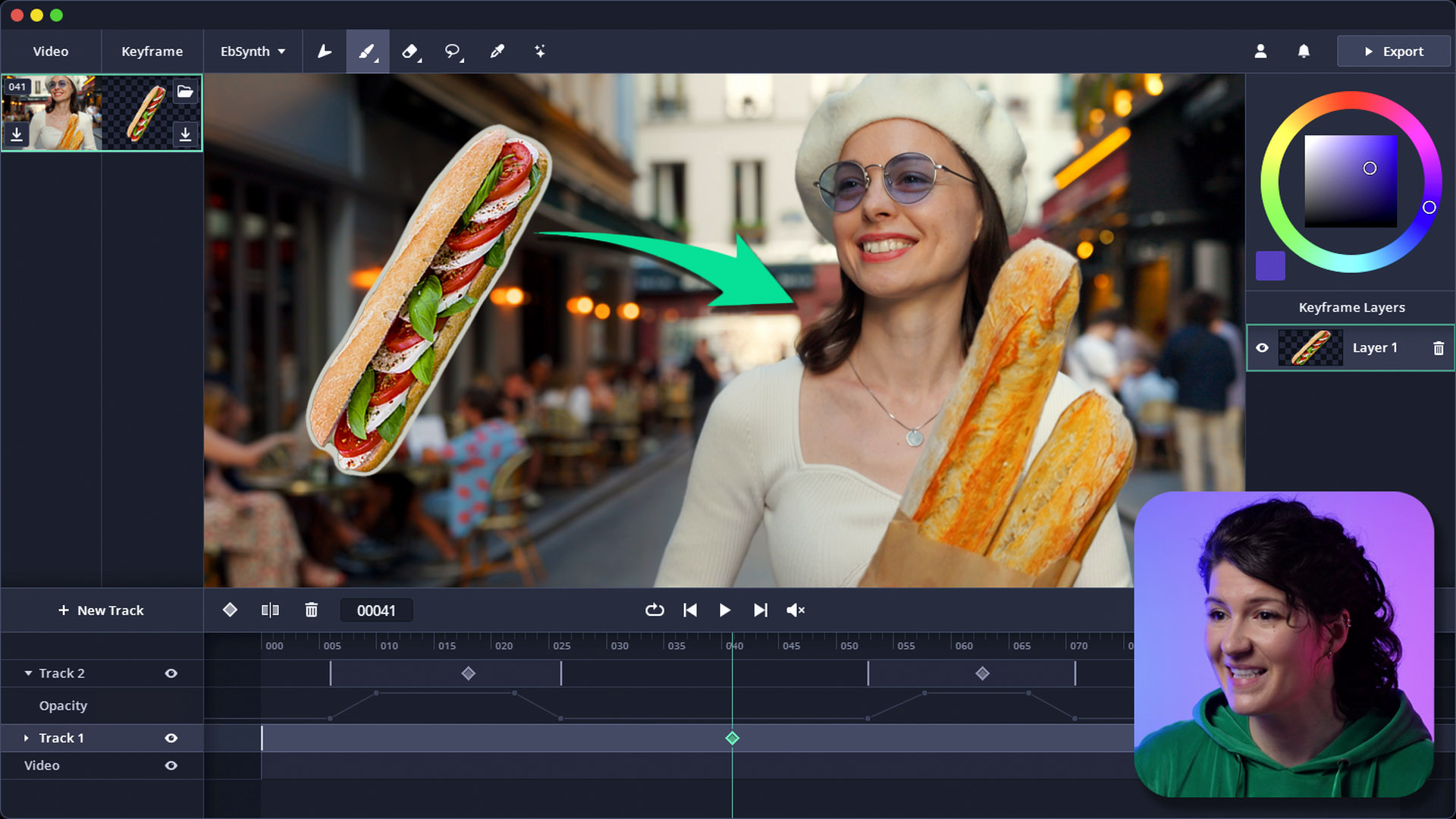
About EbSynth
EbSynth is made by VFX duo Šárka Sochorová and Ondřej Jamriška to unlock new ways of storytelling, and put creative control in the hands of artists.
 |
 |
Pricing
Free
$0
- All core functions
- 720p HD video export
- MP4 format output
Pro
$20/month
- Up to 4K video export
- PNG sequence output
- 100 generated images
- Priority processing
Studio
Custom
- Runs entirely offline
- Complete data privacy
- Command-line automation
- Dedicated support
Frequently asked questions
Is EbSynth AI?
The propagation of keyframes across the timeline doesn't use AI. It's a texture-synthesis algorithm that only uses your video and keyframes to produce the final result, it doesn't use generative models trained on external datasets.
There is an optional AI feature "Generate Image" in EbSynth that lets you generate your keyframes.
What browser should I use?
We recommend Chrome for the best experience, especially for large projects with long or high-resolution videos. Chrome handles memory-intensive processing most reliably. On laptops, make sure it uses your dedicated graphics card for optimal performance.
Do you store my projects?
No, your projects stay on your computer. We temporarily upload your video and keyframes to our servers to render your animation, then immediately delete them once results are sent back. We never share your files or use them for any internal purposes.
For fully offline processing with no uploads, consider our Studio Plan. Contact us at studio@ebsynth.com
How do I get best results?
KEYFRAMES
- Start with a single keyframe. Create additional keyframes by fixing broken areas in already synthesized frames.
- Choose the timing of your keyframes carefully. Select frames that show the most content and clear poses, not the middle of movements.
- Align the shapes in your keyframes to the shapes of the videoframes. If they don't match, you might end up with stretchy, ripple-like artifacts.
- If you use AI to generate your keyframes and it produces artifacts, use a paintbrush to roughly correct the errors, then run another AI pass with lower strength to polish the result.
- Divide your shot into parts that move independently and need a different timing for keyframes (like the background, face, or eyes). Work on each area in a separate video track.
- Use keyframes on transparent background. Isolate the elements you want to synthesize and put them in your keyframes. Leave the rest empty. For example, corrections to eye movements can go on a separate track with alpha channel keyframes.
GUIDING VIDEO
The quality of the propagation depends on calculating optical flow from the guiding video. To make tracking easier, follow these tips when shooting.
- Use soft, diffuse lighting to prevent hard, shifting shadows.
- Pick clothes with interesting textures. Shiny or flat materials are hard to track.
- Increase the frame rate for shots with fast movement to reduce motion blur.
Can I use EbSynth for free?
Yes, we offer a Free plan to anyone who wants to try it out. There are no time or functional limitations, you get to experience the whole EbSynth.
If you need advanced features like high-resolution render, PNG sequence output, or more keyframe generations, you can upgrade to our Pro plan.
How do I cancel my subscription?
Click the user menu in the top right corner and select "Manage Subscription" to cancel. Your plan stays active until the end of your current billing period.

Create with EbSynth
Your secret weapon for VFX
hello@ebsynth.com ·
Terms ·
Privacy
Change your video by editing one frame
EbSynth is VFX software for creative video transformations, retouching, and rotoscopy.
Made withEbSynth
Paint over Videos
Turn your performance into hand‑drawn animation. Just paint the keyframes, EbSynth will do the rest.
Retouch & Colorize
Skip manual tracking! EbSynth makes video touch‑ups, digital makeup, and colorizing fast and effortless.
Explore Ideas
EbSynth brings your ideas to life instantly, so you can iterate fast and stay immersed in the creative flow.
EbSynth brings your ideas to life instantly, so you can iterate fast and keep your creative flow.
Watch Tutorial
This 10‑minute tutorial shows everything you need to get started!
media loading
Error NaN
PlayPause
en0:00
en0:00
PlayPause10
Seek backward
10
10
Seek forward
10
0:00 / 10:36
MuteUnmute
Quality1x
Playback rate
Audio
Captions
start airplaystop airplay
Start castingStop casting
Enter picture in picture modeExit picture in picture mode
Enter fullscreen modeExit fullscreen mode
About EbSynth
EbSynth is made by VFX duo Šárka Sochorová and Ondřej Jamriška to unlock new ways of storytelling, and put creative control in the hands of artists.
EbSynth is made by VFX duo Šárka Sochorová and Ondřej Jamriška to unlock new ways of storytelling, and put creative control in the hands of artists.
|
|
Pricing
Free
$0
- All core functions
- 720p HD export
- MP4 format output
Pro
$20/month
- Up to 4K render
- PNG sequence output
- 100 generated images
- Priority processing
Studio
Custom
- Runs entirely offline
- Complete data privacy
- Command-line automation
- Dedicated support
Frequently asked questions
FAQ
Is EbSynth AI?
The propagation of keyframes across the timeline doesn't use AI. It's a texture-synthesis algorithm that only uses your video and keyframes to produce the final result, it doesn't use generative models trained on external datasets.
There is an optional AI feature "Generate Image" in EbSynth that lets you generate your keyframes.
What browser should I use?
We recommend Chrome for the best experience, especially for large projects with long or high-resolution videos. Chrome handles memory-intensive processing most reliably. On laptops, make sure it uses your dedicated graphics card for optimal performance.
Do you store my projects?
No, your projects stay on your computer. We temporarily upload your video and keyframes to our servers to render your animation, then immediately delete them once results are sent back. We never share your files or use them for any internal purposes.
For fully offline processing with no uploads, consider our Studio Plan. Contact us at studio@ebsynth.com
How do I get best results?
KEYFRAMES
- Start with a single keyframe. Create additional keyframes by fixing broken areas in already synthesized frames.
- Choose the timing of your keyframes carefully. Select frames that show the most content and clear poses, not the middle of movements.
- Align the shapes in your keyframes to the shapes of the videoframes. If they don't match, you might end up with stretchy, ripple-like artifacts.
- If you use AI to generate your keyframes and it produces artifacts, use a paintbrush to roughly correct the errors, then run another AI pass with lower strength to polish the result.
- Divide your shot into parts that move independently and need a different timing for keyframes (like the background, face, or eyes). Work on each area in a separate video track.
- Use keyframes on transparent background. Isolate the elements you want to synthesize and put them in your keyframes. Leave the rest empty. For example, corrections to eye movements can go on a separate track with alpha channel keyframes.
GUIDING VIDEO
The quality of the propagation depends on calculating optical flow from the guiding video. To make tracking easier, follow these tips when shooting.
- Use soft, diffuse lighting to prevent hard, shifting shadows.
- Pick clothes with interesting textures. Shiny or flat materials are hard to track.
- Increase the frame rate for shots with fast movement to reduce motion blur.
Can I use EbSynth for free?
Yes, we offer a Free plan to anyone who wants to try it out. There are no time or functional limitations, you get to experience the whole EbSynth.
If you need advanced features like high-resolution render, PNG sequence output, or more keyframe generations, you can upgrade to our Pro plan.
How do I cancel my subscription?
Click the user menu in the top right corner and select "Manage Subscription" to cancel. Your plan stays active until the end of your current billing period.
Create with EbSynth
Create with EbSynth
Your secret weapon for VFX
hello@ebsynth.com ·
Terms ·
Privacy
×
media loading
Error NaN
PlayPause
en0:00
en0:00
PlayPause10
Seek backward
10
10
Seek forward
10
0:00 / 10:36
MuteUnmute
Quality1x
Playback rate
Audio
Captions
start airplaystop airplay
Start castingStop casting
Enter picture in picture modeExit picture in picture mode
Enter fullscreen modeExit fullscreen mode