

详细内容
BuildKit 2.0 by Pica
Build AI tools with a single prompt
The easiest way to build AI tools and MCPs for integrations. Create production-ready tools in minutes.
Get startedWatch demo
Supporting:
 Vercel AI SDK
 LangChain
 MCP
Getting Started Tutorial
Build an AI tool to fetch your emails
👋 Follow this tutorial to build a tool to fetch your Gmail emails in under 5 minutes.
What we'll do:
-
Install the Pica MCP Server
-
Connect your Gmail account
-
Set up a starter project (Vercel AI SDK, LangChain, or MCP)
-
Add some rules for the LLMs to understand BuildKit
-
Prompt the LLM to build your tool
1
Install the Pica MCP Server
First, let's add the Pica MCP Server to your development environment. Select your preferred tool and follow the instructions.
 Cursor
 Claude Code
 Windsurf
In the Cursor menu, select "MCP Settings" and update the MCP JSON file to include the following:
MCP Settings JSONCopy
{
  "mcpServers": {
    "pica": {
      "command": "npx",
      "args": ["@picahq/mcp"],
      "env": {
        "PICA_SECRET": "your-pica-secret-key"
      }
    }
  }
}
Note: Replace your-pica-secret-key with your actual Pica secret key from the link below.
!
Grab your API Key
Navigate to your Pica dashboard to access your API keys.
2
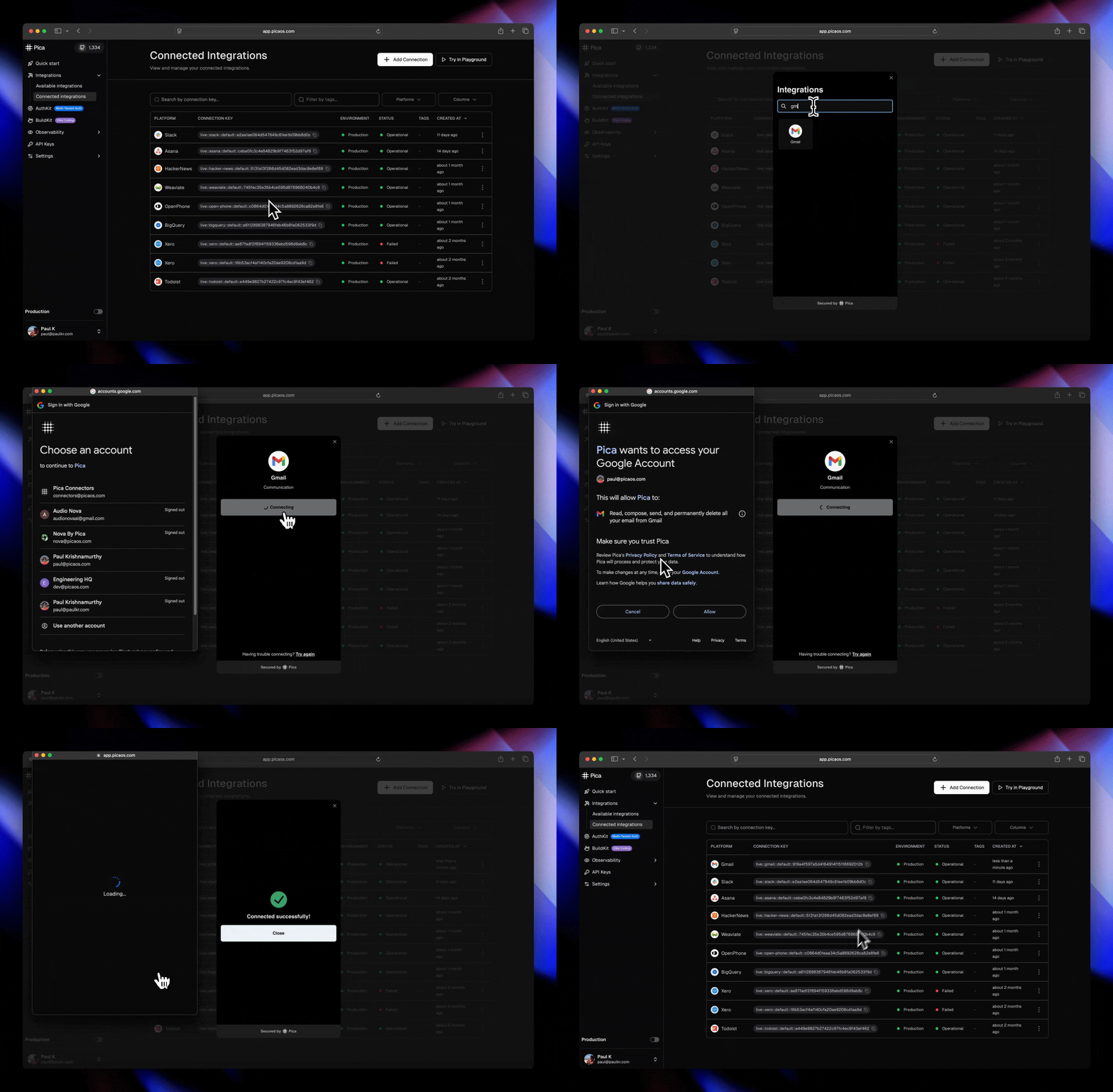
Connect your Gmail account
Now we need to connect your Gmail account so we can test our tool after we build it.
3
Set up a starter project
Choose your preferred framework and follow the setup steps to get your starter project up and running.
Vercel AI SDKLangChainMCP Server
1. Clone and install dependencies
Clone RepositoryCopy
git clone https://github.com/picahq/buildkit-vercel-ai-starter.git && cd buildkit-vercel-ai-starter
Install DependenciesCopy
npm install
2. Set up environment variables
Create a .env.local file in the root directory:
.env.localCopy
OPENAI_API_KEY=your_openai_api_key_here
3. Run the development server
Start ServerCopy
npm run dev
4. Open your browser
Navigate to http://localhost:3000 to see the chat interface.
4
Add some rules for the LLMs to understand BuildKit
CursorClaude CodeWindsurf
BuildKit Rules for Cursor
.cursor/rules/buildkit.mdc
Click the button below to copy the rules for Instant and paste them into .cursor/rules/buildkit.mdc in the root of your project.
Copy
✓
Verify Setup
You can verify setup by asking "What connections do I have in Pica?" - it should show your Gmail connection.
5
Prompt the LLM to build your tool
Vercel AI SDK toolLangChain toolMCP Server tool
Copy this prompt to build the Vercel AI SDK tool:
Vercel AI SDK ToolCopy
Create me a tool called fetchGmailEmails in my Vercel AI SDK agent for fetching my Gmail unread emails and returning the content using BuildKit
🚀
Ready for more?
You've just seen how fast it is to build with BuildKit! Browse our catalog of 25,000+ actions across 150+ integrations and create tools or MCP servers for any platform with a single prompt.