

详细内容
Your AI Assistant that Understands You Better
Built-in AI programming assistant with capabilities like code completion, explanation, and debugging for faster development.
Download Trae Plugin
Builder Mode
New
Quickly go from 0 to 1 by autonomously breaking down requirements and completing multi-step coding tasks.
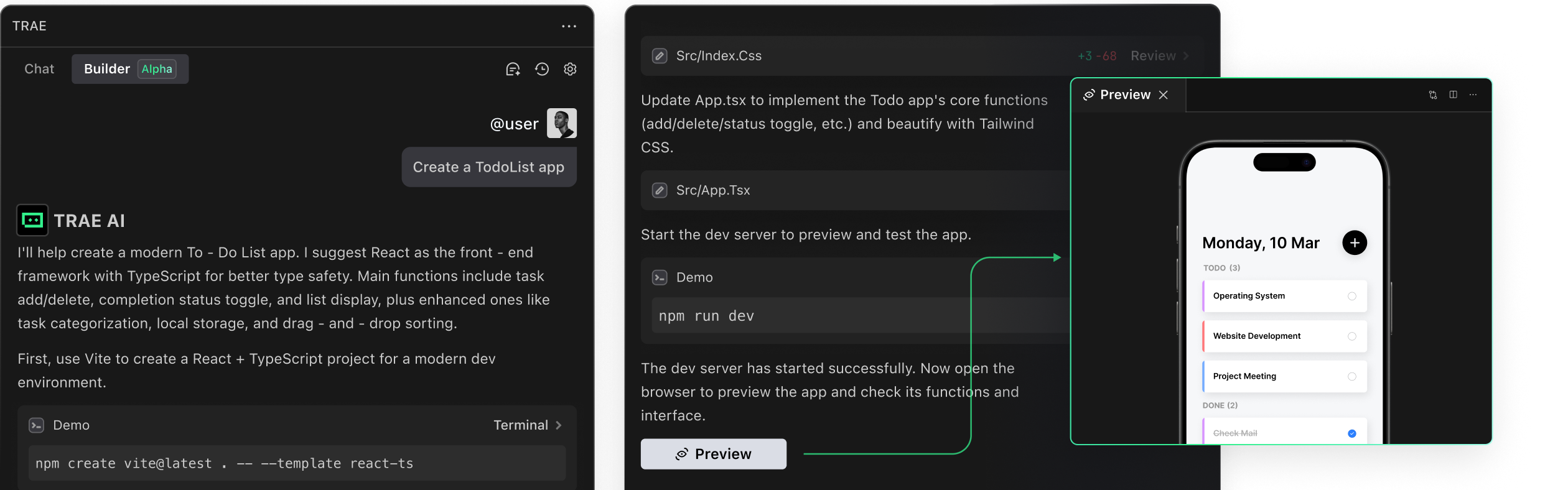
Code Completion
It provides single-line or entire function suggestions during the coding process and supports generating code snippets through comments.
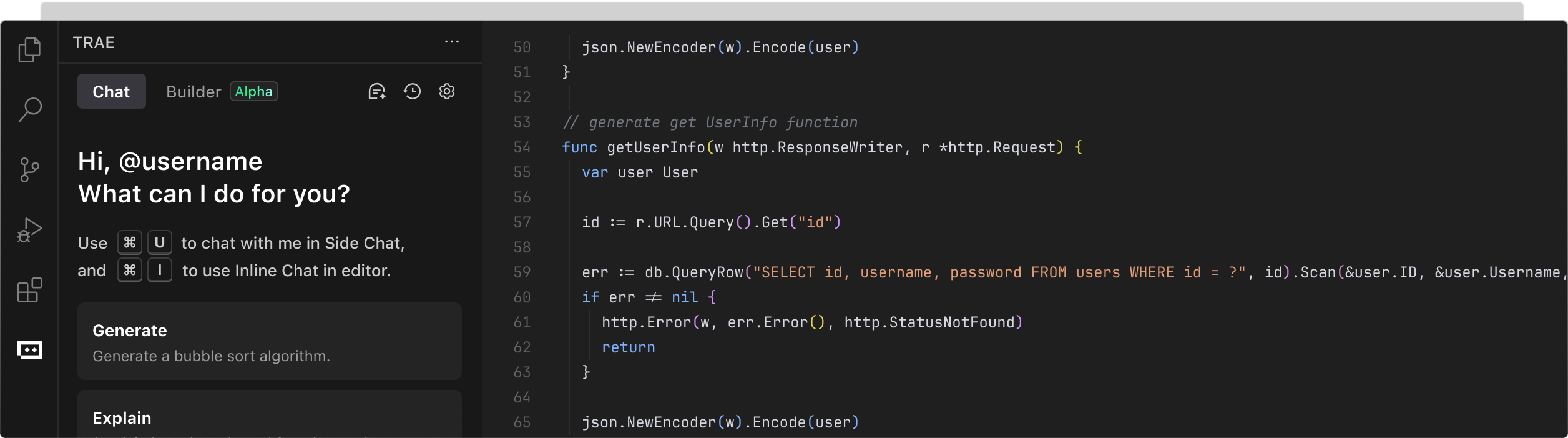
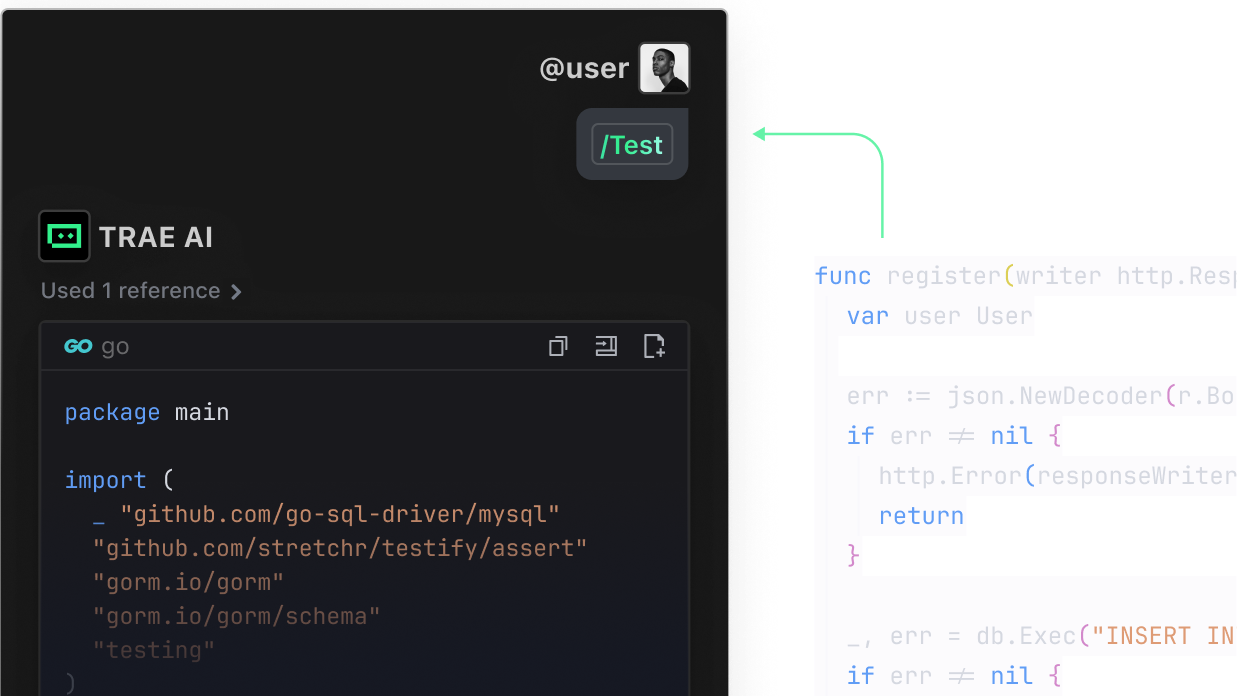
Unit Test Generation
Generate unit tests for the selected function to improve the unit test coverage rate, thereby enhancing code quality.
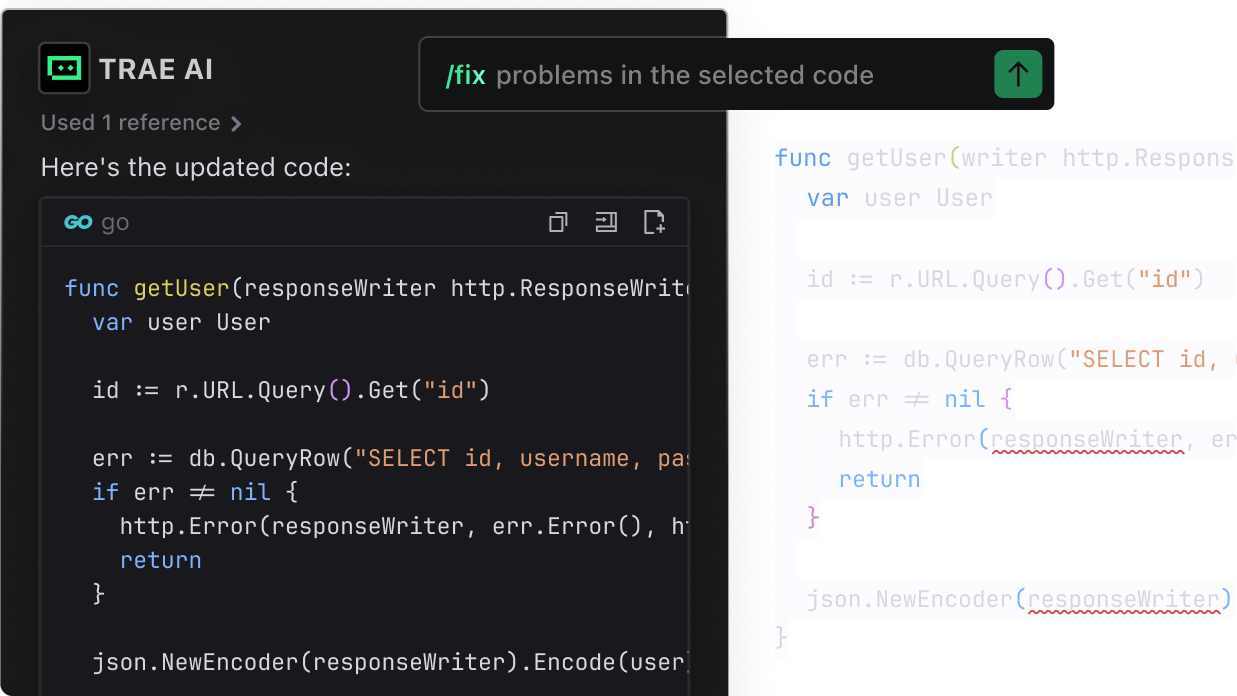
AI Fix
Fix code bugs with a single click, enhancing code repair efficiency.
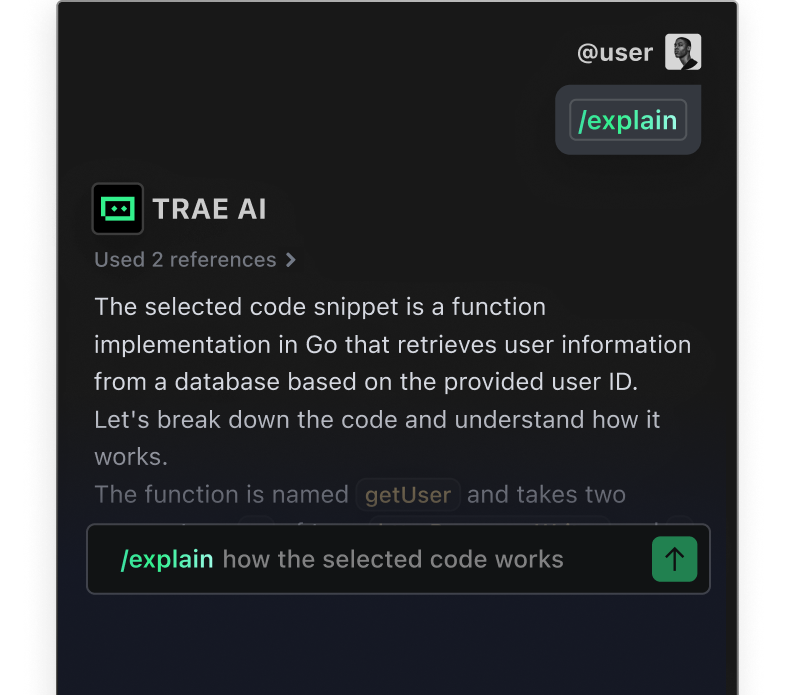
Code Explanation
Precisely explains project code for quick development onboarding.
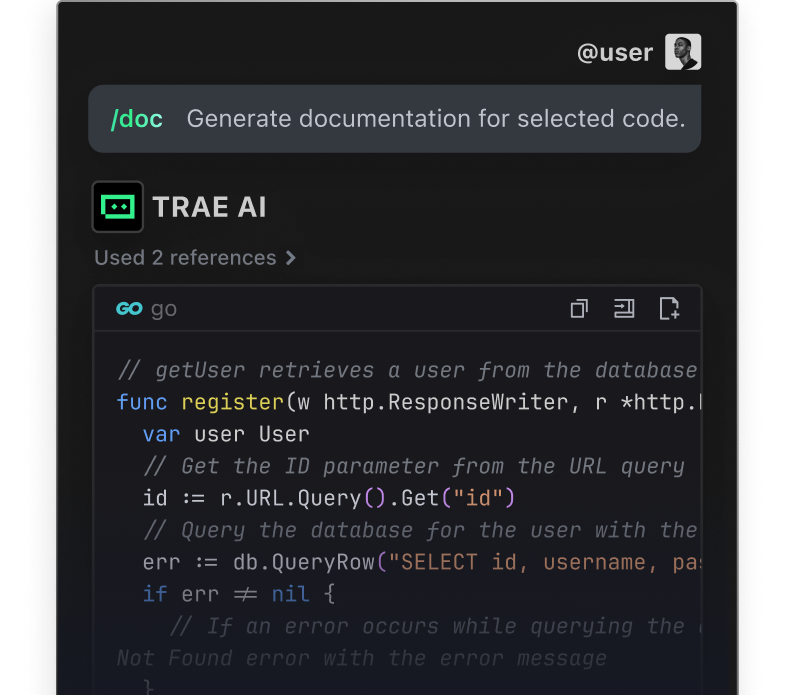
Doc Generation
Generate documentation for the entire function or each line of code to improve code readability.
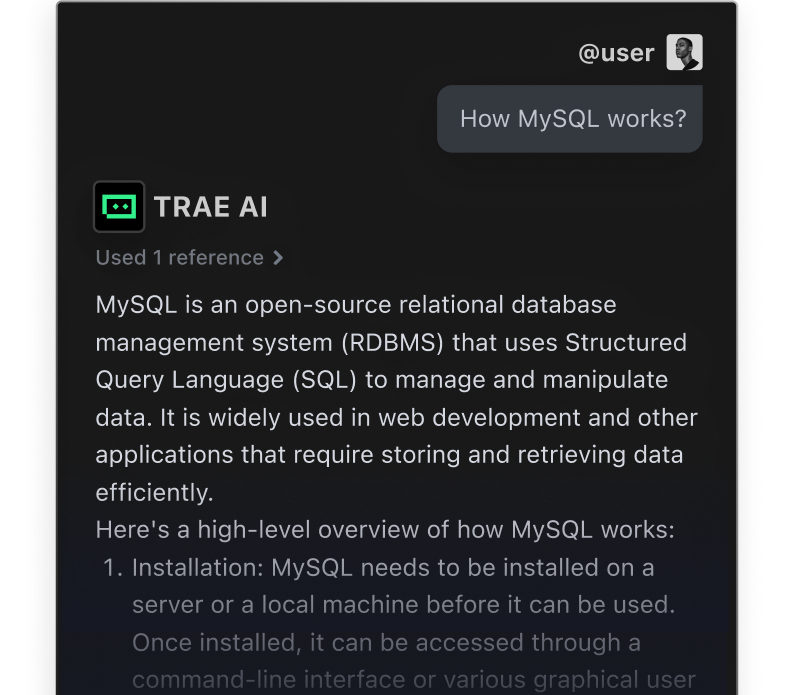
AI Q&A
Targeted optimization of Q&A quality offering more precise Q&A results.
Support Multiple IDEs and Various Programming Languages
Trae Plugin supports over 100 languages, with particular proficiency in Python, Go, JS, TS, C++, Java, Kotlin, C, and Rust. It also seamlessly integrates with VSCode and JetBrains.
Python
Go
JavaScript
HTML/CSS
TypeScript
C++
Java
Kotlin
C
Rust
...
Python
Go
JavaScript
HTML/CSS
TypeScript
C++
Java
Kotlin
C
Rust
...
VS Code
JetBrains IDEs

How to Start
How to start with Trae Plugin, some short description
VSCode
JetBrains
Install in Visual Studio Code(Don't have VSCode yet? Download)
Quick Installation:
Open Visual Studio Code Marketplace, download Trae Plugin and install it. After installation, please Restart Extensions and log in to experience the AI assisted coding Install now
Manual Installation:
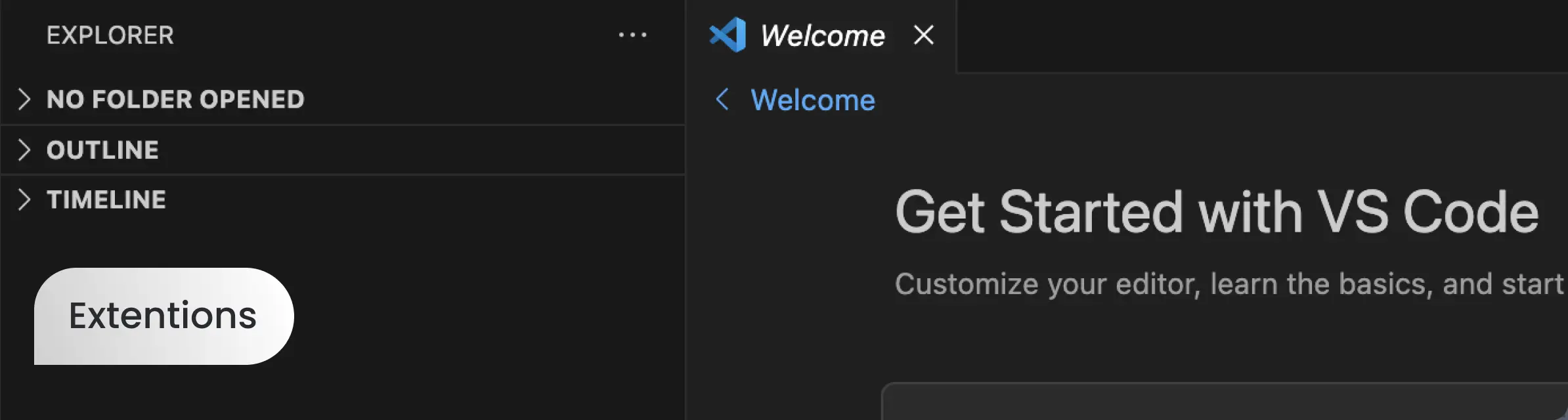
Step 1:
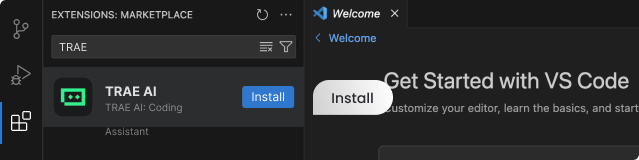
After installing Visual Studio Code, click on extensions in the left navigation bar.
Step 2:
Search for Trae, find the plugin and click install.
Step 3:
Restart Visual Studio Code. After a successful restart, log in to your account. Find Trae Plugin on the left sidebar, and you can experience AI assisted coding.
Download Trae Plugin